
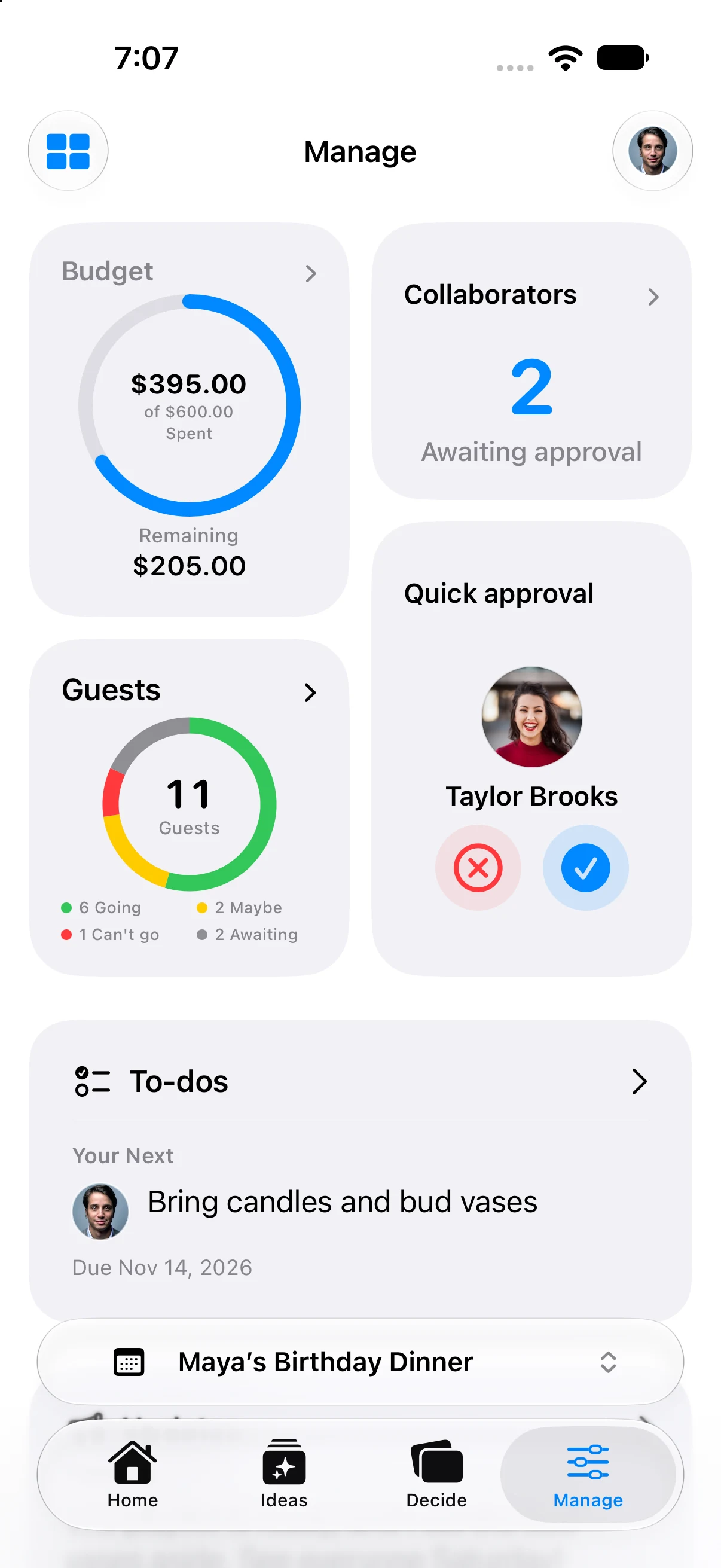
Choose the event first
On Home, select or browse to the event you want to share. Tap Share Invitation next to the workspace button and check the event preview before sending anything.
A main gathering and its sub-events can have different people and details. Share the intended event rather than assuming every link refers to the whole workspace.
Choose guest or collaborator access
Guests receive the invitation and content shared with them. They can RSVP without navigating the planning tabs.
Collaborators enter the planning experience. Their permissions determine what they can do:
- Can manage: change settings and manage the planning circle.
- Can contribute: add ideas, give input, and update shared plans.
- View only: follow the plans without making changes.
View-only collaborators still see planning content. Choose Guest when someone only needs the invitation experience.
Share a link or invite by email
Create an invitation link and use the sharing controls to send it through Messages, AirDrop, or another destination in the system share sheet. You can also copy the link. Invite by Email creates an invitation for a specific person.
A shared link can be forwarded. “Anyone with the link” does not mean anonymous participation: the recipient signs in or creates an account to join. They do not have to create a separate event first.
Configure collaborator links
Open Sharing Settings to control the collaborator invite link, its default access, and Approve Collaborators.
With approval enabled, a person requests access and waits for review before entering the planning circle. Without approval, people joining through that link receive its configured access directly. Check this before sharing a link outside your trusted group.
Find and review join requests
For the main event, open Event Settings → People & Access → Join Requests. Pending requests also appear in that event’s sharing view; Home’s Share button shows a pending count after requests load.
Review the person and access level, then choose Approve or Decline. These controls are for hosts and collaborators with management permission. Pull down on the request list to refresh. A network connection is needed to load and review requests.
If you shared a sub-event, check that sub-event’s sharing view. The workspace settings list is for the main event.
Join with the right account
The invitation offers Sign In to Join when you are signed out. After signing in, you can join or request approval as appropriate. Use Use Another Account if you need a different identity.
An existing participant’s link opens their event with their existing role. It does not downgrade a host to the role advertised by a shared link. Someone awaiting approval can use Check Status after the host reviews the request.
Check attendance separately
Joining the event and responding to it are separate actions. Use Going, Not Sure, or Not Going on the invitation to set your attendance.
Open Who’s Coming to see each person’s response for that event. Pull down to refresh the list. Being a host or collaborator is an access role—not another person’s RSVP.
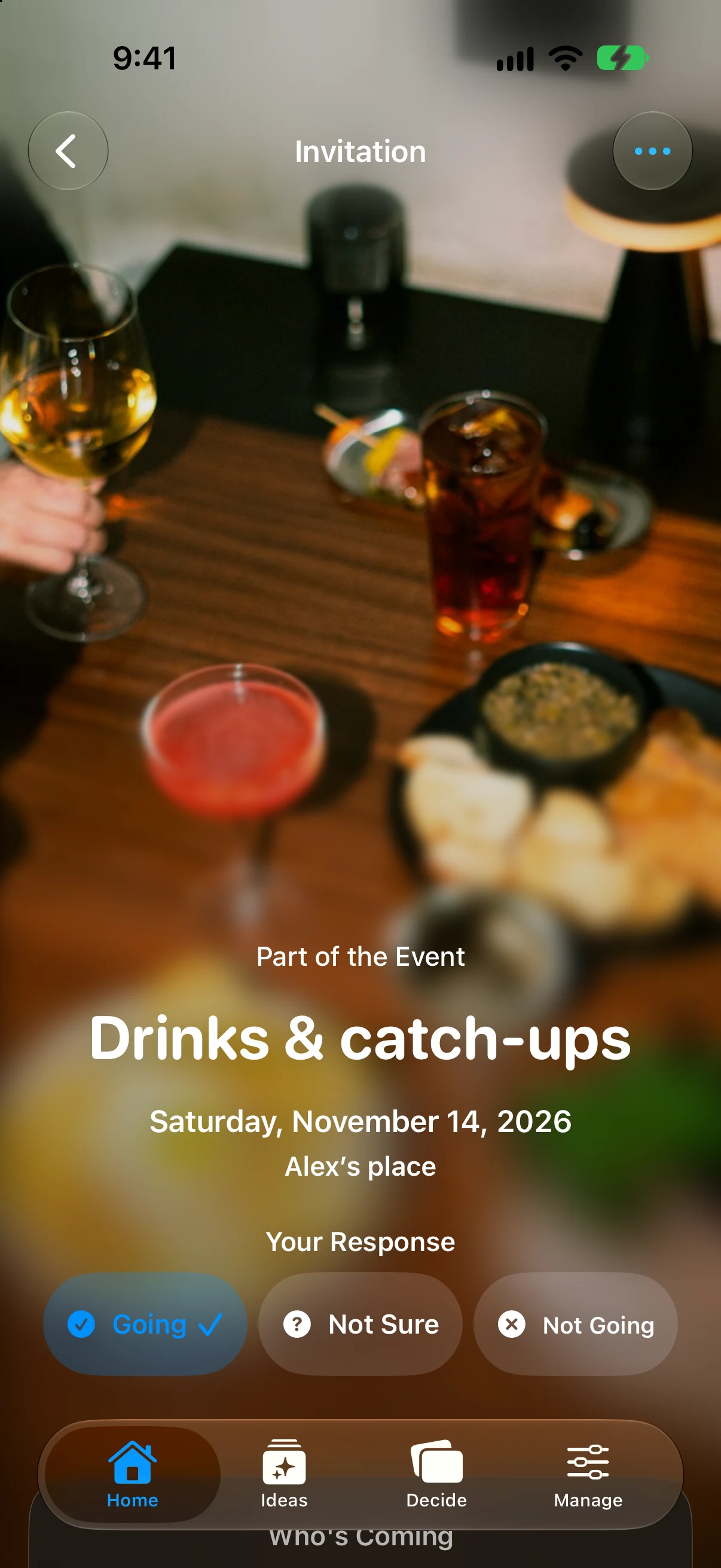
The native app’s fictional birthday fixture; the invitation and RSVP state are demonstration data.
Stop future joins or remove access
Disabling an invite link stops new joins; it does not remove people who already joined. Manage an existing participant’s access separately in the event’s people controls.
Before sharing, also check which idea details are shown on the invitation. An invitation preview should contain only information you are comfortable sharing with its recipients.