
1. Give the gathering a home
Create a workspace for the main event. Add the date, time zone, and location you currently know. Keep related activities inside that workspace instead of creating a disconnected plan for every meal or visit.
Home lets you browse the event cards. Opening a card takes you into its details.
2. Capture useful context
A screenshot is more useful with a reason attached. Add what the idea is, which event it supports, and what someone else needs to know to evaluate it.
Ideas starts on All Ideas. Filter by event when you want a smaller set. When creating an idea, confirm Adding to in the New Idea sheet: browsing or selecting an event on Home changes the default for the next idea.
Use the category that fits, such as Venue, Food, Music, or Link. You can leave an idea unfinished while you gather information.
3. Get input without deciding for the whole team
In Decide, choose Pass, Maybe, or Love It. These are personal responses. Loving an idea does not approve it for everyone, and passing does not delete it.
The response bar includes unanswered eligible planners, not just the people who have voted. A partly green bar can mean some people support the idea and others have not responded yet.
An authorized planner approves the idea separately. Approved Event ideas with dates appear on Home; undated ones remain in Ideas.
4. Check costs where they belong
Record costs against the relevant event and use Manage to review spending and budget allocations. Estimated idea prices are useful for comparison, but they are not a substitute for a confirmed expense or agreement.
Keep contracts, payment deadlines, and other records in the tools your team uses for those jobs. Gatherory is not a payment processor.
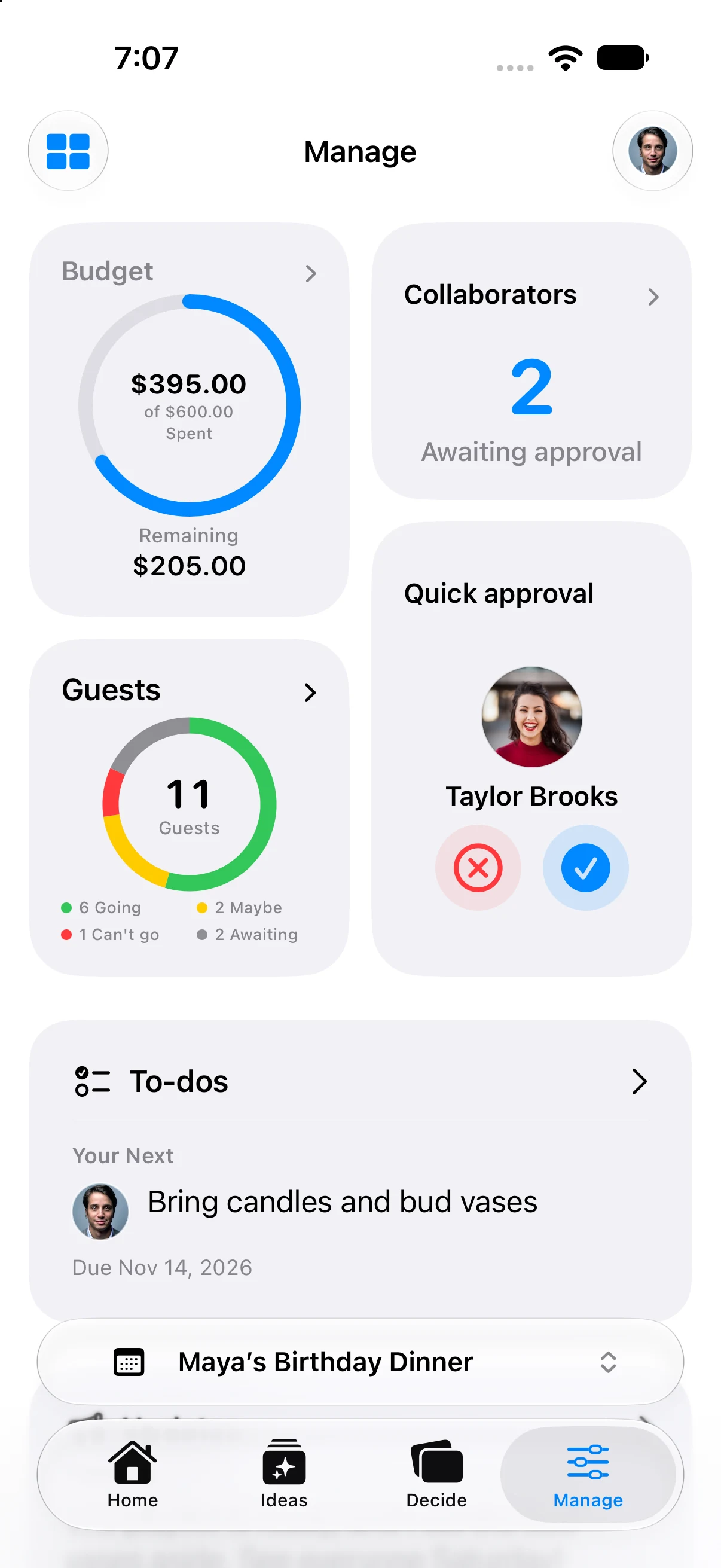
The native app’s fictional Maya’s Birthday Dinner fixture; amounts, guest counts, and tasks are demonstration data.
5. Share the invitation, not all the planning
Use Home’s Share Invitation control. Guest access is for the shared event experience and RSVP. Collaborator access is for the planning circle, with permission to manage, contribute, or view.
Share the link through Messages, AirDrop, or another destination in the system share sheet. The link can be forwarded, so review its role, permissions, and approval setting first.
6. Stay useful when the connection is poor
Gatherory keeps local planning data so the interface does not need to wait for a fresh network response on every tab change. Previously loaded content and supported saved changes can remain useful offline.
New invitations, join requests, approvals, and newly uploaded media need a connection. An offline view cannot tell you about changes it has not received. Check the sync status in Account when you need to confirm saved changes have reached the server.
7. Check the guest experience
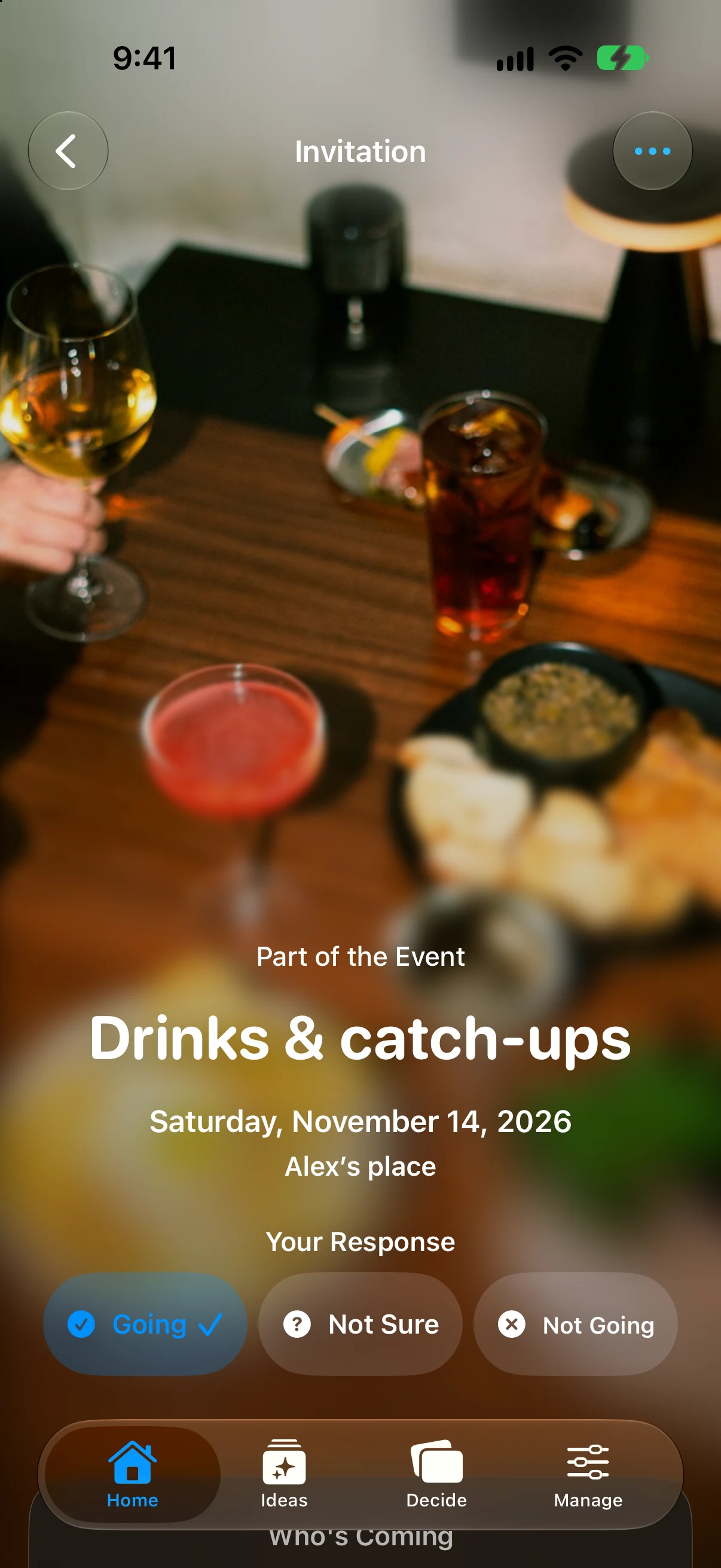
Open the invitation as a guest. Confirm the date, location, relevant shared content, and RSVP choices. Use Who’s Coming to see each person’s response for that event and pull down to refresh it.
Use Send a Note for an event update when needed. Keep the essential logistics in the event itself so guests do not have to reconstruct the plan from messages.