
Create an event—or join someone else’s
Sign in or create an account. If you are organizing a gathering, choose Create an Event during onboarding. If someone has invited you, follow their invitation link instead. You can skip creating a new event during onboarding; you do not need an event of your own to participate in theirs.
To create another gathering later, open Events and use the plus button.
Set the essentials
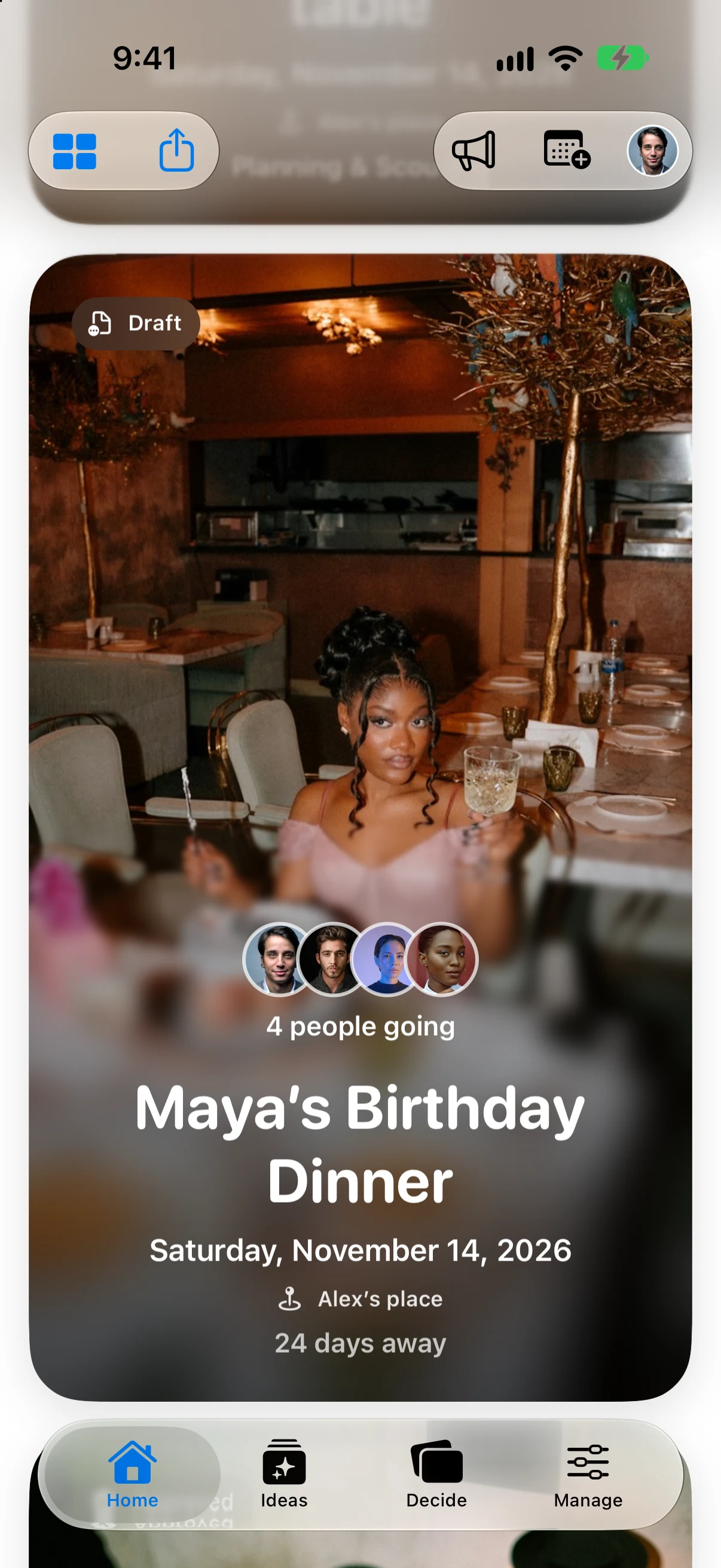
Give the main event a recognizable name. Review its date, time, and time zone rather than leaving a suggested value by accident. Add a location when you know it, and a budget if it helps your planning.
A cover photo is optional. Gatherory uses its default event artwork when you have not chosen an image.
Use a separate workspace for a separate gathering. Use sub-events when a dinner, rehearsal, activity, or planning visit belongs to the same gathering.
Find your way around the four planning tabs
- Home shows the main event and its visible, dated sub-events. Open a card to see its invitation content and details.
- Ideas collects possibilities by category and event. All Ideas is the default; use the event filter to narrow the view.
- Decide collects each eligible planner’s preferences. It is not an automatic approval system.
- Manage brings together the budget, to-dos, guests, collaborators, and updates.
Guests get the shared invitation experience rather than these planning tabs.
Add an idea in the right context
Open Ideas, tap the add button, and choose a category. In New Idea, check Adding to before saving. The event you selected or last browsed on Home supplies the default context.
Categories include Event, Venue, Music, Food, Attire, Flowers, Photography, Decor, Invitations, Registry, Link, Honeymoon, and Other. Add a photo, link, note, or estimated cost when the category calls for it.
A saved option is not a confirmed plan. Keep several possibilities if you are still comparing.
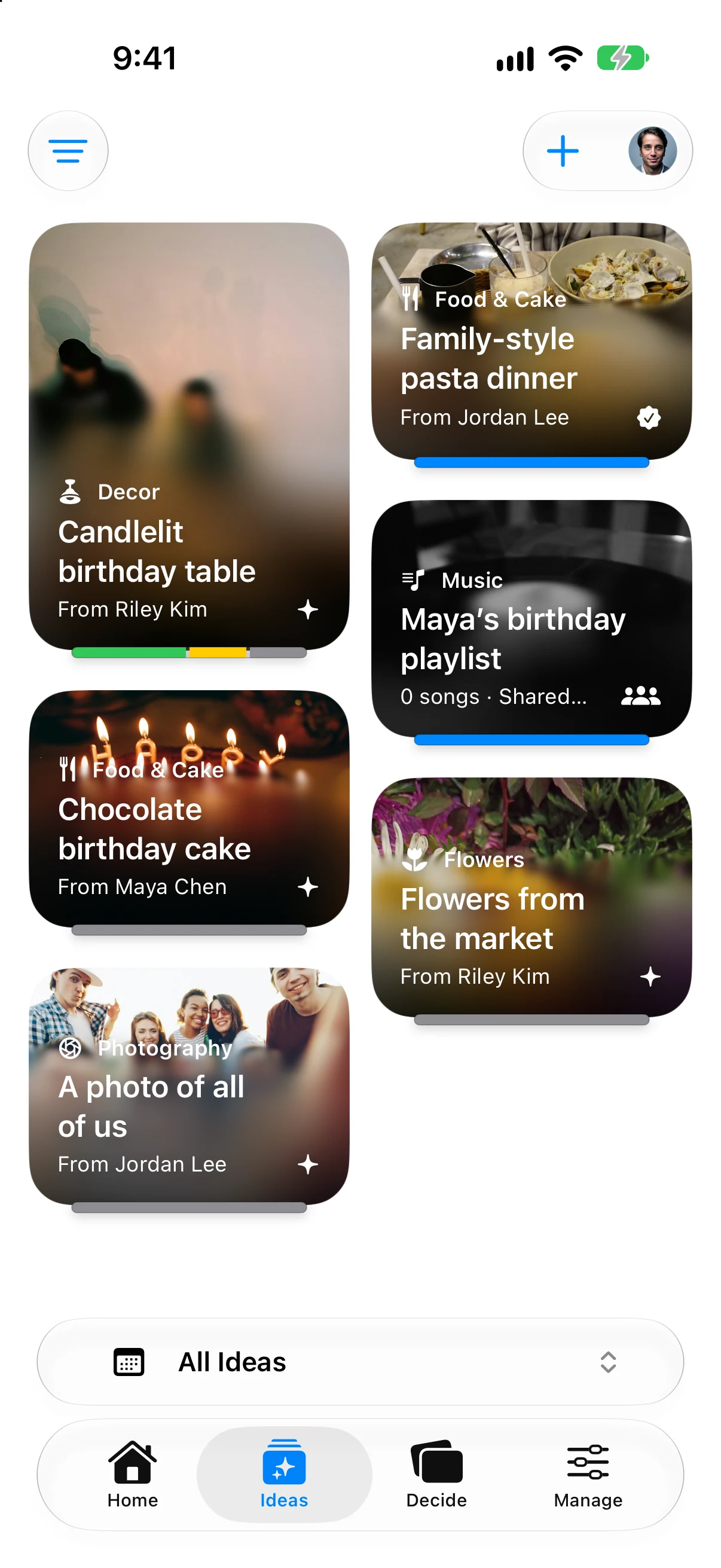
The native app’s fictional Maya’s Birthday Dinner fixture; the Ideas screen shows example saved plans.
Add the moments around the main event
Use Home’s add-event control or create an Event idea. A welcome dinner, venue visit, or next-day brunch can have its own logistics while remaining part of the gathering.
An approved Event idea with a date can appear on Home. An event idea without a date stays in Ideas until you schedule it. You do not need to look for a separate Timeline tab.
Invite the right people
From Home, tap Share Invitation beside the workspace button. Choose whether the invitation is for guests or collaborators.
For collaborator links, Sharing Settings controls whether approval is required and what access people receive. Manage pending requests in the sharing view or Event Settings → People & Access → Join Requests.
See Inviting people and managing access before sharing a link widely.
Check before you send
Open the event card, confirm the details guests will see, and review which ideas are shown on the invitation. Test with a guest account so you see the guest experience rather than your host controls.
When you return to planning, start with one real decision. You do not have to fill every category to make the workspace useful.